Mastering SSH in Raspberry Pi: A Comprehensive Guide
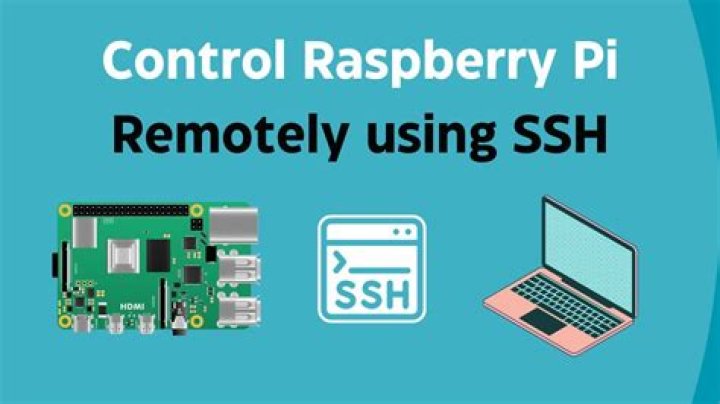
SSH in Raspberry Pi has become an essential tool for remote management and automation tasks. Whether you're a hobbyist or a professional developer, understanding SSH can significantly enhance your project capabilities. This article will explore everything you need to know about SSH, from its basics to advanced configurations, ensuring your Raspberry Pi is secure and efficient.
SSH, or Secure Shell, is a cryptographic network protocol that enables secure communication between devices over an unsecured network. It plays a vital role in managing Raspberry Pi remotely, especially when physical access to the device is not feasible. By leveraging SSH, users can execute commands, transfer files, and even set up automated systems.
As Raspberry Pi continues to gain popularity in both educational and professional environments, mastering SSH becomes crucial. This guide aims to provide a comprehensive understanding of SSH, including setup, troubleshooting, and best practices, to help you harness the full potential of your Raspberry Pi.
Introduction to SSH
SSH, or Secure Shell, is a protocol designed to provide secure communication between two devices over an insecure network. It is widely used for remote administration and executing commands on a server. SSH encrypts all data transmitted between the client and server, ensuring confidentiality and integrity.
One of the primary uses of SSH is remote access to command-line interfaces. By connecting to a Raspberry Pi via SSH, users can perform tasks as if they were physically present at the device. This capability is particularly useful for managing headless Raspberry Pi setups, where no monitor or keyboard is attached.
Why Use SSH on Raspberry Pi?
Raspberry Pi is a versatile device used in various applications, from home automation to robotics. SSH in Raspberry Pi offers several advantages:
- Remote access: Manage your Raspberry Pi from anywhere with an internet connection.
- Security: SSH encrypts all data, protecting sensitive information from unauthorized access.
- Automation: Use SSH to automate tasks and scripts, improving efficiency.
- File transfer: Transfer files securely between your computer and Raspberry Pi.
Setting Up SSH on Raspberry Pi
Enabling SSH
Enabling SSH on Raspberry Pi is straightforward. Follow these steps:
- Boot your Raspberry Pi and log in to the desktop environment.
- Open the terminal and type
sudo raspi-config. - Navigate to "Interfacing Options" and select "SSH".
- Choose "Enable" and reboot your Raspberry Pi.
Connecting to SSH
Once SSH is enabled, you can connect to your Raspberry Pi using an SSH client. On Windows, you can use PuTTY, while macOS and Linux have built-in SSH support. To connect, use the following command:
ssh pi@your-raspberry-pi-ip-address
Replace "your-raspberry-pi-ip-address" with the actual IP address of your Raspberry Pi.
Securing Your SSH Connection
While SSH is inherently secure, additional measures can enhance its protection:
- Change the default password for the "pi" user to a strong, unique one.
- Disable password-based authentication and use SSH keys instead.
- Change the default SSH port (22) to a non-standard port to reduce automated attacks.
- Use a firewall to restrict access to the SSH port.
Implementing these practices can significantly reduce the risk of unauthorized access.
Advanced SSH Configurations
SSH Keys
SSH keys provide a secure alternative to password-based authentication. To set up SSH keys:
- Generate a key pair on your local machine using
ssh-keygen. - Copy the public key to your Raspberry Pi using
ssh-copy-id pi@your-raspberry-pi-ip-address. - Disable password authentication in the SSH configuration file (
/etc/ssh/sshd_config).
Port Forwarding
Port forwarding allows you to access your Raspberry Pi's SSH service from outside your local network. This can be achieved by configuring your router to forward a specific external port to the Raspberry Pi's SSH port.
Common SSH Issues and Troubleshooting
Even with proper setup, SSH issues may arise. Here are some common problems and solutions:
- Connection refused: Ensure SSH is enabled and the Raspberry Pi is reachable.
- Permission denied: Verify the correct username and password or check SSH key permissions.
- Timeout errors: Check your network connection and ensure the Raspberry Pi's IP address is correct.
Using SSH for File Transfer
SSH supports secure file transfer using the SFTP protocol. You can use an SFTP client or the command line to transfer files:
sftp pi@your-raspberry-pi-ip-address
Once connected, use commands like put and get to upload and download files.
SSH and Automation
SSH is a powerful tool for automating tasks on Raspberry Pi. By writing scripts and scheduling them with cron jobs, you can perform repetitive tasks without manual intervention. For example, you can automate backups, system updates, or data collection.
Best Practices for SSH
To ensure a secure and efficient SSH setup, follow these best practices:
- Regularly update your Raspberry Pi's operating system and SSH software.
- Monitor SSH logs for suspicious activity.
- Limit SSH access to trusted IP addresses if possible.
- Use strong, unique passwords or SSH keys for authentication.
Conclusion
SSH in Raspberry Pi is an indispensable tool for remote management and automation. By following the steps outlined in this guide, you can set up, secure, and optimize your SSH connection for various applications. Remember to adhere to best practices and continuously update your knowledge to stay ahead of potential security threats.
We encourage you to share your thoughts and experiences in the comments below. If you found this article helpful, consider exploring other resources on our site or sharing this guide with fellow Raspberry Pi enthusiasts. Together, let's unlock the full potential of SSH and Raspberry Pi!
References: