How to Access Raspberry Pi Remotely via SSH: The Ultimate Guide
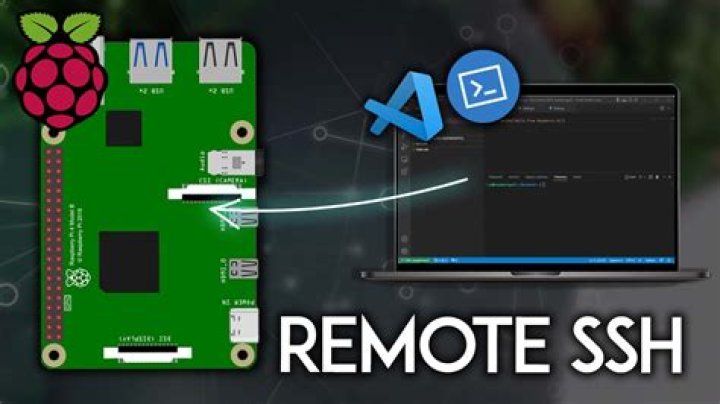
Accessing your Raspberry Pi remotely using SSH (Secure Shell) is one of the most efficient ways to manage and control your device from anywhere. Whether you're a developer, hobbyist, or tech enthusiast, learning how to set up SSH for remote access can significantly enhance your productivity and flexibility. This guide will walk you through every step of the process, ensuring you have a seamless experience.
SSH is a secure protocol that allows users to access and manage their devices remotely over a network. With Raspberry Pi, this functionality becomes even more powerful, enabling you to control your device without needing a monitor, keyboard, or mouse. Whether you're managing a home server, running IoT projects, or automating tasks, SSH provides a reliable solution.
In this comprehensive guide, we'll explore everything you need to know about accessing your Raspberry Pi remotely via SSH. From setting up SSH on your Raspberry Pi to troubleshooting common issues, we've got you covered. Let's dive in!
Introduction to SSH
SSH, or Secure Shell, is a cryptographic network protocol designed for secure communication over unsecured networks. It allows users to securely log into remote computers and execute commands. SSH encrypts all data transmitted between the client and server, ensuring confidentiality and integrity.
For Raspberry Pi users, SSH is an essential tool for managing the device remotely. By enabling SSH, you can access your Raspberry Pi from any location with an internet connection. This is particularly useful for headless setups, where the Raspberry Pi operates without a monitor, keyboard, or mouse.
Benefits of Using SSH:
- Secure communication between devices.
- Ability to manage Raspberry Pi remotely.
- Supports automation and scripting.
- Reduces the need for physical interaction with the device.
Setting Up SSH on Raspberry Pi
Enabling SSH on Raspberry Pi
To enable SSH on your Raspberry Pi, follow these steps:
- Boot up your Raspberry Pi and log in to the desktop environment.
- Open the Raspberry Pi Configuration tool by navigating to Menu > Preferences > Raspberry Pi Configuration.
- Go to the Interfaces tab.
- Set SSH to Enabled.
- Click OK to save your changes.
Alternatively, you can enable SSH from the command line by running the following command:
sudo raspi-config
Select Interfacing Options > SSH, and choose Yes to enable SSH.
Verifying SSH Status
To confirm that SSH is enabled, use the following command:
sudo service ssh status
If SSH is active, you'll see a message indicating that the service is running.
Accessing Raspberry Pi Remotely via SSH
Once SSH is enabled on your Raspberry Pi, you can connect to it remotely using an SSH client. Here's how:
Using SSH from Linux or macOS
Linux and macOS come with built-in SSH clients. To connect to your Raspberry Pi, open a terminal and type:
ssh pi@
Replace
Using SSH from Windows
Windows users can use tools like PuTTY or the built-in Windows Terminal to connect via SSH. Here's how to use PuTTY:
- Download and install PuTTY from the official website.
- Launch PuTTY and enter your Raspberry Pi's IP address in the Host Name (or IP address) field.
- Set the port to 22 (default SSH port).
- Click Open to establish the connection.
- Log in using the "pi" username and password.
Finding Your Raspberry Pi's IP Address
To access your Raspberry Pi remotely, you'll need its IP address. Here's how to find it:
Using the Command Line
Open a terminal on your Raspberry Pi and type:
hostname -I
This will display the IP address assigned to your Raspberry Pi.
Using a Network Scanner
If you don't have direct access to your Raspberry Pi, you can use a network scanner app like Fing (available for iOS and Android) to discover devices on your network. Look for a device named "raspberrypi" to find its IP address.
Using SSH Clients
There are several SSH clients available for different platforms. Below are some popular options:
Recommended SSH Clients
- OpenSSH: Built into Linux and macOS.
- PuTTY: A free and widely used SSH client for Windows.
- Termius: A cross-platform SSH client available for desktop and mobile devices.
- MobaXterm: A powerful SSH client for Windows with additional features like file transfer and remote desktop.
Automating SSH Connections
Automating SSH connections can save time and streamline your workflow. Here are some methods to achieve this:
SSH Keys for Passwordless Login
Set up SSH keys to log in without entering a password every time:
- Generate an SSH key pair on your local machine using the command:
ssh-keygen. - Copy the public key to your Raspberry Pi using:
ssh-copy-id pi@. - Test the connection by logging in via SSH. You should now be able to access your Raspberry Pi without entering a password.
SSH Configuration File
Create an SSH configuration file to store connection details:
- Open or create the file
~/.ssh/configon your local machine. - Add the following lines to define a shortcut for your Raspberry Pi:
Host raspberryHostNameUser pi- Now, you can connect using:
ssh raspberry.
Security Considerations for SSH
While SSH is secure by default, there are additional steps you can take to enhance security:
Change the Default SSH Port
Modify the SSH port to reduce the risk of automated attacks:
- Edit the SSH configuration file:
sudo nano /etc/ssh/sshd_config. - Change the Port setting to a non-standard value (e.g., 2222).
- Restart the SSH service:
sudo service ssh restart.
Disable Root Login
Prevent direct root access to minimize security risks:
- Open the SSH configuration file:
sudo nano /etc/ssh/sshd_config. - Set PermitRootLogin to no.
- Restart the SSH service.
Troubleshooting Common Issues
Here are solutions to common problems you might encounter when using SSH:
Unable to Connect via SSH
- Ensure SSH is enabled on your Raspberry Pi.
- Verify the IP address and port number.
- Check your firewall settings to allow SSH traffic.
Password Authentication Failed
- Double-check the username and password.
- Ensure SSH keys are properly configured if using key-based authentication.
Advanced SSH Features
SSH offers a range of advanced features to enhance your remote access experience:
Port Forwarding
Use SSH port forwarding to securely access services running on your Raspberry Pi:
ssh -L 8080:localhost:80 pi@
This command forwards port 80 on your Raspberry Pi to port 8080 on your local machine.
Tunneling
Create an encrypted tunnel to access internal network resources securely:
ssh -D 1080 pi@
Configure your browser to use a SOCKS proxy on localhost:1080.
Conclusion
In this guide, we've covered everything you need to know about accessing your Raspberry Pi remotely via SSH. From setting up SSH to automating connections and enhancing security, SSH is a powerful tool for managing your Raspberry Pi efficiently.
Remember to always prioritize security when using SSH. By following best practices, such as using SSH keys and changing the default port, you can protect your device from potential threats.
We encourage you to experiment with the advanced features of SSH and explore its full potential. If you found this guide helpful, please share it with others and leave a comment below. For more tutorials and tips, explore our other articles on Raspberry Pi and related topics.